Linux Console / Shell
[FTP]
[Shell Scripts]
[Processes]
Most of the info here is from William Shotts’ book The Linux Command Line (free download)
Which command-line interface (shell, terminal) am I running? $ echo $0 or $ echo $SHELL
Find the location of a running program $ which bash
exit - close terminal window
date - show date
cal - calendar
df - show free drive space
free - show free memory
clear - clear console
Multiple commands on a single line are possible by separating them with semicolons! cd /usr; ls; cd -
Navigation
pwd - print working directory (show name of current directory)
cd - change directory
cd .. - change back out of directory
cd - - change to previous directory
ls - list directory contents
ls /usr - list contents of specific directory
ls -l - list in long form (showing date, size, owner, rights)
ls -lth --reverse - long format with human readable filesize and sort by time in reverse order
ls -a - show all, including hidden
ls -F - classify (appends / if it’s a directory)
ls -s - sort by size
ls -R - list subdirectories recursively
ls *.ab[wx] -l: long format list of all files that end with .abw or abx

eza is a nice replacement for ls! https://eza.rocks
Files / Directories
mkdir - create directory $ mkdir mydirectory rm - delete (remove) file
delete file $ rm myfile
delete directory $ rm mydirectory -d or if not empty: $ rm mydirectory -r
file [filename] - print type of file
cp - copy
cp [[:upper:]p].abw TEST/ -i - copy all files that start with an uppercase letter or “p” .abw to the directory TEST and interactively prompt for confirmation before overwriting
cp TEST TEST2 -rv - copy recursively (needed for directories) and give verbose feedback about what’s happening
mv - move or rename files and dirs
ln - create hard and symbolic links
ln file.abw hard.abw - creates a hard link
ln -s file.abw symb.abw - creates a symbolic link
Alias
alias foo='cd /usr; ls; cd -' - creates an alias for these three commands that can be used anywhere in the shell (until you close the shell)
unalias foo - remove the alias
Less
less [filename] - open text file (exit with :q)
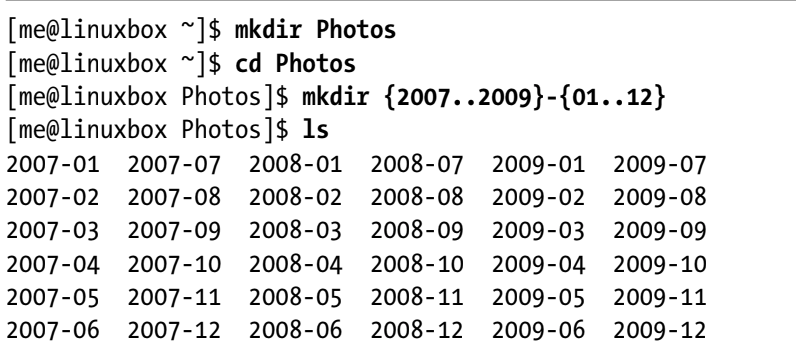
Brace Expansion
$ echo Front-{A,B,C}-Back results in Front-A-Back, Front-B-Back, Front-C-Back
Path
Show $ echo $PATH
In our Home directory there’s a directory called “bin” and we want to add that to the path: $ export PATH="$HOME/bin:$PATH" printenv - Show all environment variables
ZIP
zip - for example: zip the entire “Documents” folder into temp.zip: $ zip -r temp.zip Documents
Ubuntu Server 2022.04 - Switching between consoles
ALT + Left / Right - Switch between multiple consoles
Commands
What are commands? Executable programs, commands built into the shell itself, shell functions or aliases.
type command - display a command’s type (for example type ls shows ls is aliased to ls --color=auto)
which command - displays an executable’s location (for example which ls shows /usr/bin/ls)
help command - get help for shell builtins. also try info command, command --help or man command
apropos searchterm - search the list of man pages for possible matches based on a search term
I/O Redirection
cat - concatenate files (reads one or more files and copies them to standard output)
$ cat info.txt - display file contents of info.txt without pagination
$ cat movie.mpeg.0* > movie.mpeg - join several files together
$ cat - waits for standard input - type something. then press CTRL + D to tell cat that it has reached end of file on standard input.
$ cat > file.txt lets you type into file.txt.
sort - sort lines of text
uniq - report or omit repeated lines
grep pattern filename - print lines matching a pattern
wc - print newline, word and byte counts for each file
head - output the first part of a file (by default: first 10 lines, can be adjusted with head -n 5 tail - output the last part of a file
tee - read from standard input and write to standard output and files***** *(like a tee in a pipe)
Redirecting standard output
> - redirection, send to. $ ls -l /usr/bin > ls-output.txt - send the output of ls into ls-output.txt but if our command results in an error it will be displayed on screen and not go into the file
>> - append. $ ls -l ~ >> ls-output.txt - appends the output to the file
2> - redirect standard error, but display normal output on screen $ ls -l /doesnotexist 2> ls-error.txt redirect both standard output and standard error $ ls -l /bin/usr > ls-output.txt 2>&1 - redirection of standard error must always occur after redirecting standard output!
newer versions of bash can do this with &> and &>>
2> /dev/null - dispose of unwanted output. /dev/null is a special file (bit bucket) which accepts input and does nothing with it.
Pipelines
command1|command2 - standard output of one command is piped** into the standard input of another
$ ls -l /usr/bin | less - pipes the output of the command into less, so we can conveniently display it in a text editor without saving it as a file
$ ls /bin /usr/bin | sort | less - pipe the output of ls for 2 directories into sort then pipe the output of sort into less $ ls /bin /usr/bin | sort | uniq | grep zip - list the directories, sort, uniq, then match only those that have zip in the name.
$ ls /usr/bin | tee ls.txt | grep zip - list the directory, pipe the output into tee, which saves it to a file, but tee also sends it on to standard output where it gets piped into grep
> and | seem similar, but do very different things! > connects a command with a file, while | connects the output of one command to the input of a second command.
Leave a comment