BatchProcessor
Over the years I’ve made several attempts at a generalised solution to the problem of automating boring stuff. BatchProcessor is the best one so far!
➡️ Available on the Unity Asset Store: ⚙️ BatchProcessor
What is it and what does it do?
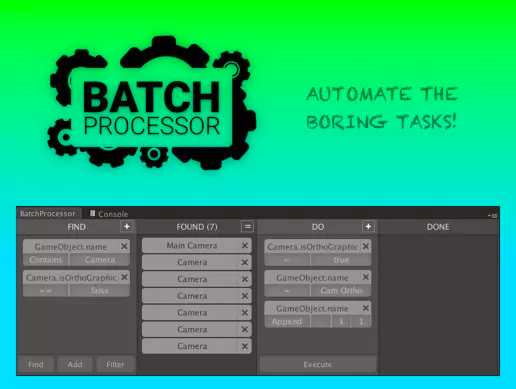
It’s a Unity EditorWindow that’s split into 4 sections:
-
🔍 Find - Find and filter objects (search for any kind of value on pretty much any kind of field)
-
🔢 Found - Result of your search - sort ascending/descending/randomly
-
⚙️ Do - Add “Processors” to do stuff with your found objects (assign values, add/remove components, add prefabs, arrange object, etc.)
-
🔢 Done - All objects that have been processed the last time you executed the Do column
Challenges
Speed of use
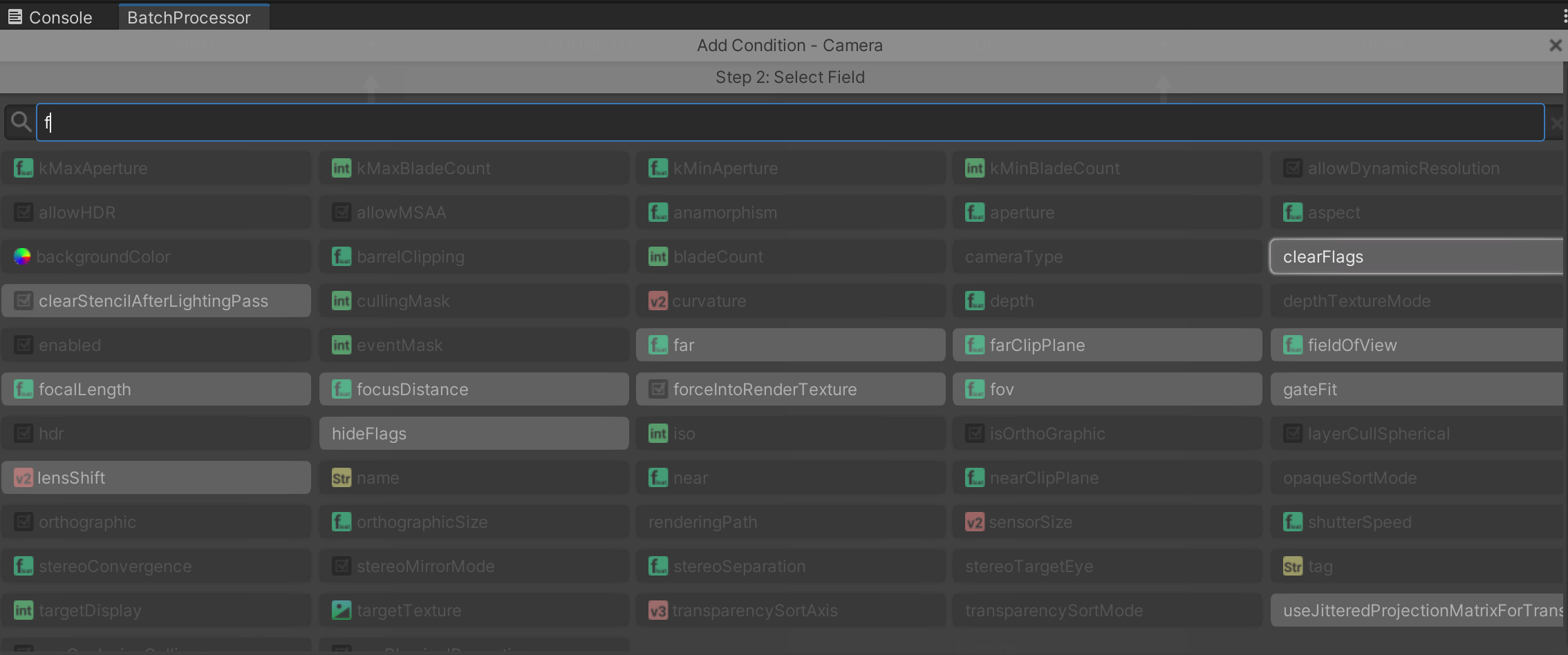
BatchProcessor can deal with pretty much all the fields on all the components on all the objects in all your open scenes. So just showing the user a long list of everything would not be good enough. So in addition to the list I added a search field that auto-assumes focus. As you type it greys out everything that’s not a match. You can Tab through the remaining matches and press Enter to accept.
Customisability
Under the hood, I use Reflection to support custom classes. Any supported field on any kind of class you write will be automatically supported!
On the ⚙️ Processing side, I tried to make it as easy as possible to write custom “Processors”.
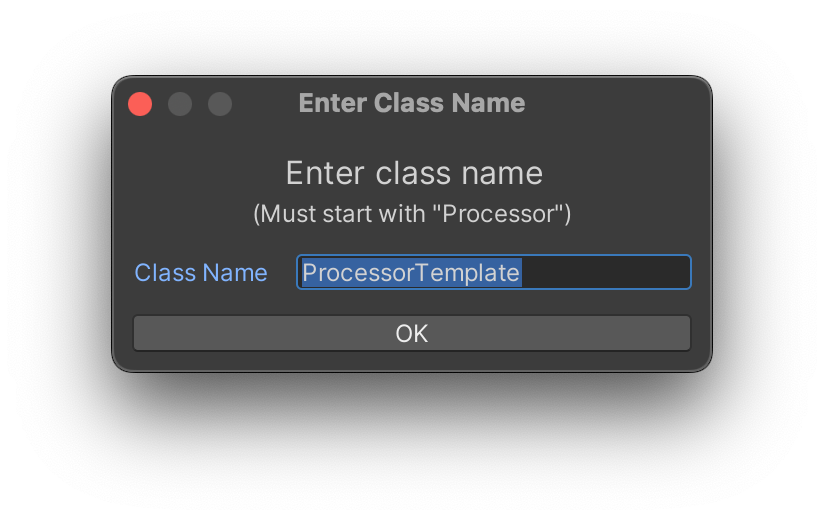
I added a custom item to Unity’s Create menu under C# Editor/Custom Processor - this pops up a window asking for a name, then creates a script that is pre-filled with everything you need. Change some things around in there and you’ve got a custom processor that does exactly what you need!
Usefulness
I came up with a basic set of “Processors” that could handle most use cases:
-
Assign value - assign, add, subtract, multiply, prepend, append, replace, regex (depending on selected type)
-
Assign interval - can be used to rename things, add a string to set/replace/append/prepend, then set a starting value and a step value. But can just as well be used with other types to assign the transform.position.y value of a group of objects - start at 12, add 2.5 for each, etc.
-
Add/Remove Component - add or remove components from objects
-
AddPrefab - add prefabs 🙂
-
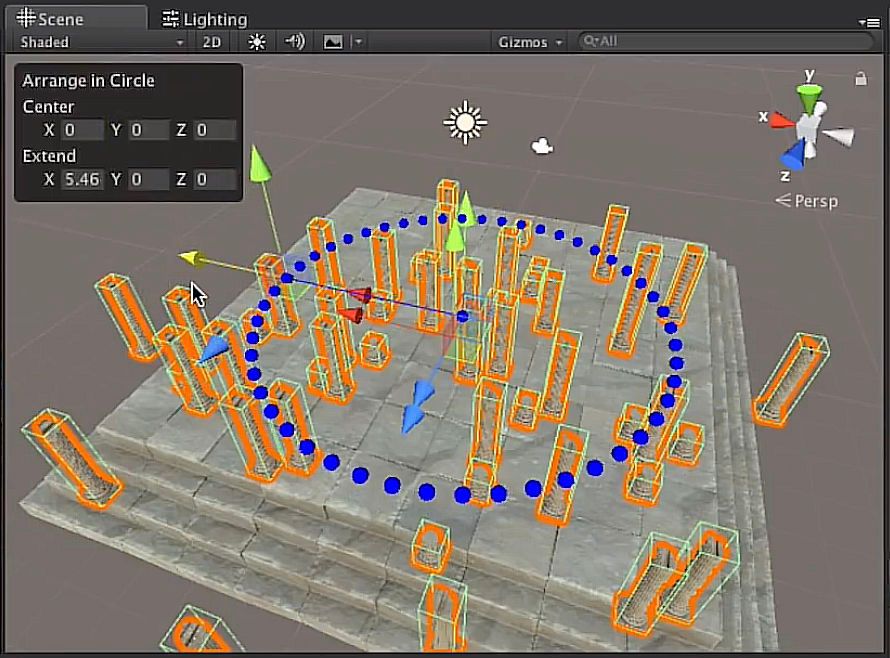
PositionArrange - arrange in a circle, arrange in a line or look at a specific target. Comes with nice scene-view UI that makes it easy to set everything up just the way you want.
Leave a comment